Thursday, 29 March 2018
Wednesday, 12 July 2017
Restoring Connections Tab in IE /Chrome
Some times system administrators may disable the Connections tab from IE. or some malware / viruses will do the same. If you want to restore the connections tab to revisit your proxy settings and dial up settings, you can do the following.
Make sure you have Administrator rights or Super user to edit Registry settings.
Open the run (Start --> run) and type regedit.exe
now go to the following key /folder in registry:
Value Name: ConnectionsTab
Key 1: HKEY_CURRENT_USER\Software\Policies\Microsoft\Internet Explorer\Control Panel
Key 2: HKEY_LOCAL_MACHINE\Software\Policies\Microsoft\Internet Explorer\Control Panel
Just open the registry editor go to those keys and delete the value if it exists.
If you see a value as 1 please change it to 0 and close the registry. Now open IE, you can able to see the connection tab in Internet Options.
Make sure you have Administrator rights or Super user to edit Registry settings.
Open the run (Start --> run) and type regedit.exe
now go to the following key /folder in registry:
Value Name: ConnectionsTab
Key 1: HKEY_CURRENT_USER\Software\Policies\Microsoft\Internet Explorer\Control Panel
Key 2: HKEY_LOCAL_MACHINE\Software\Policies\Microsoft\Internet Explorer\Control Panel
Just open the registry editor go to those keys and delete the value if it exists.
If you see a value as 1 please change it to 0 and close the registry. Now open IE, you can able to see the connection tab in Internet Options.
Friday, 23 June 2017
Configuring Fiddler with Browser, .Net based & Java based Applications
Configure an application to use Fiddler
Fiddler is an HTTP Proxy running on port 8888 on your local PC. You can configure any application which accepts a HTTP Proxy to run through Fiddler so you can debug its traffic.
WinINET-based applications (E.g. Microsoft Office, Internet Explorer, etc) should automatically use Fiddler while it's running and the "Capture Traffic" box is checked on the Fiddler File menu.
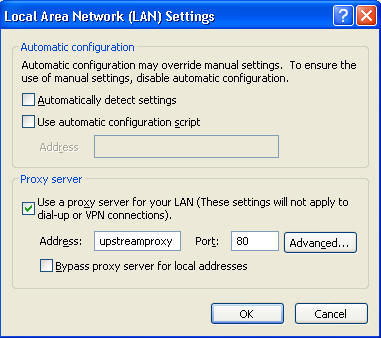
If they do not, they can be configured to use Fiddler by setting the appropriate option in the Internet Explorer Tools | Internet Options | Connections | LAN Settings dialog. (You can also get to this dialog in the Tools | Internet Options menu inside Fiddler).
Monitor RAS, VPN, or dialup connections
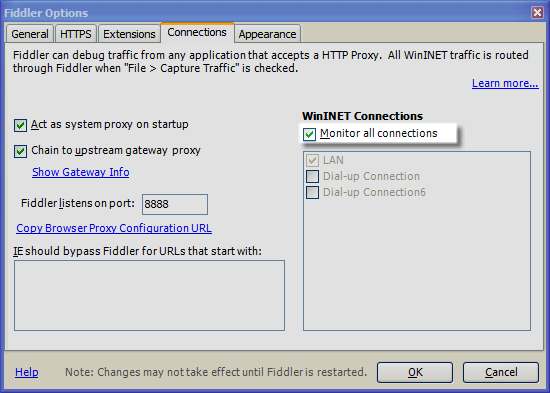
Fiddler 2.2.0.3 and later introduces a new option which enables automatic monitoring of dialup or VPN connections:
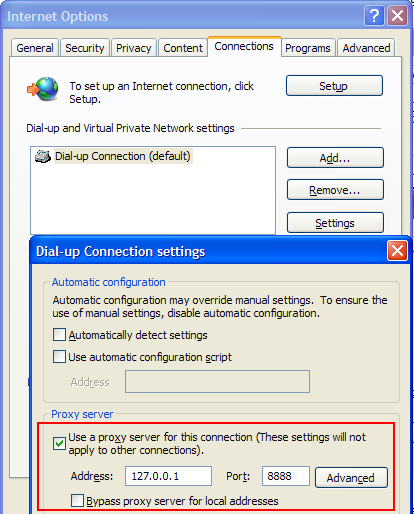
Otherwise, you'll need to set the Proxy Configuration manually. Set the proxy for your VPN/dialup connection as follows:
Alternatively, you can set the "Use automatic configuration script" option as described in the "Other browsers" tip below.
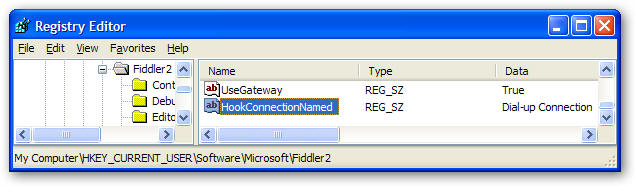
Note: If you always have an active VPN or dialup connection, set the HookConnectionNamed registry value to the name of the Connection (e.g. "Dial-up Connection" in the above screenshot). When you do this, Fiddler will hook this connection instead of the LAN connection.
Note: IE will always use the proxy settings from any active VPN connection, without regard to whether or not that VPN connects to the Internet.
Configure a .NET application to use Fiddler?
If you're coding a .NET application, K Scott Allen's blog shows a simple way to hook Fiddler temporarily for debugging purposes:
GlobalProxySelection.Select = new WebProxy("127.0.0.1", 8888);Note that you might not even need to do this-- The Framework should autodetect the WinINET proxy when the .NET application starts. Note that this means that Fiddler must be started BEFORE your application if your application is to autodetect Fiddler.
You may specify a proxy inside the yourappname.exe.config file. If the .NET application is running in your current user account, you can simply add the following content inside the configuration section:
<configuration>See http://msdn.microsoft.com/en-us/magazine/cc300743.aspx for more on this topic.
<system.net>
<defaultProxy>
<proxy bypassonlocal="false" usesystemdefault="true" />
</defaultProxy>
</system.net>
</configuration>
If you need to get code running in a different user-account (e.g. a Windows Service) to send traffic to Fiddler, you will need to edit the configuration inside the machine.config.
If all else fails, you can manually specify the proxy on an individual WebRequest object, like so:<!-- The following section is to force use of Fiddler for all applications, including those running in service accounts --> <system.net>
<defaultProxy>
<proxy autoDetect="false" bypassonlocal="false" proxyaddress="http://127.0.0.1:8888" usesystemdefault="false" />
</defaultProxy>
</system.net>
objRequest = (HttpWebRequest)WebRequest.Create(url);Important: Regardless of other settings, .NET will always bypass the Fiddler proxy for URLs containing localhost. So, rather than using localhost, change your code to refer to the machine name. For instance:
objRequest.Proxy= new WebProxy("127.0.0.1", 8888);
Does not show in Fiddler: http://localhost/X509SignCodeService/X509SigningService.asmx
Shows in Fiddler: http://mymachine/X509SignCodeService/X509SigningService.asmx
Configure a PHP/CURL application to use Fiddler?
Add the following line of code before you send your requests, where $ch is the handle returned by curl_init():
curl_setopt($ch, CURLOPT_PROXY, '127.0.0.1:8888');
From the command line:
curl --proxy 127.0.0.1:8888
Configure a Java application to use Fiddler?
Per http://www.davidreilly.com/java/java_network_programming/#2.4 you should be able to do something like:
jre -DproxySet=true -DproxyHost=127.0.0.1 -DproxyPort=8888 MyApp
But, per http://stackoverflow.com/questions/120797/how-do-i-set-the-proxy-to-be-used-by-the-jvm, you instead need to use:
jre -DproxySet=true -Dhttp.proxyHost=127.0.0.1 -Dhttp.proxyPort=8888
You can also change the VM's proxy settings programmatically:
System.setProperty("http.proxyHost", "127.0.0.1");
System.setProperty("https.proxyHost", "127.0.0.1");
System.setProperty("http.proxyPort", "8888");
System.setProperty("https.proxyPort", "8888");
You can learn more here: http://java.sun.com/j2se/1.5.0/docs/guide/net/proxies.html. System.setProperty("https.proxyHost", "127.0.0.1");
System.setProperty("http.proxyPort", "8888");
System.setProperty("https.proxyPort", "8888");
Why don't I see traffic sent to http://localhost or http://127.0.0.1?
Internet Explorer 8 and earlier and the .NET Framework 4.5 and earlier are hardcoded not to send requests for Localhost through any proxies, and as a proxy, Fiddler will not receive such traffic.
Update: This behavior was changed for Internet Explorer 9. IE9 allows Fiddler to proxy traffic sent to localhost or 127.0.0.1 without additional steps on your part.The simplest workaround is to use your machine name as the hostname instead of Localhost or 127.0.0.1. So, for instance, rather than hitting http://localhost:8081/mytestpage.aspx, instead visit http://machinename:8081/mytestpage.aspx.
...Or, just use http://ipv4.fiddler to hit localhost on the IPv4 adapter. This works especially well with the Visual Studio test webserver (codename: Cassini) because the test server only listens on the IPv4 loopback adapter. Use http://ipv6.fiddler to hit localhost on the IPv6 adapter, or use http://localhost.fiddler to hit localhost using "localhost" in the Host header. This last option should work best with IIS Express.
Lastly, you could update your Rules file like so:
static function OnBeforeRequest(oSession:Fiddler.Session){
if (oSession.HostnameIs("MYAPP")) { oSession.host = "127.0.0.1:8081"; }
}
...and then just hit http://myapp, which will act as an alias for 127.0.0.1:8081.
Note: You shouldn't ever encounter the "Localhost traffic not captured" problem with Firefox. The FiddlerHook add-on for Firefox removes "localhost" from the "bypass proxy" list when Fiddler is in "Capturing" mode.
Configure a WinHTTP application to use Fiddler?
You can either directly configure the WinHTTP application to point to Fiddler, in code, or you can use the following command at the command prompt to tell WinHTTP to use Fiddler:
On XP or below:
proxycfg -p http=127.0.0.1:8888;https=127.0.0.1:8888...or this one to force WinHTTP to use WinINET's proxy settings:
proxycfg -uOn Vista or above, use an Elevated (admin) command prompt:
Note: On Windows 7 and earlier, netsh is bitness specific, so you may want to run the above command twice: first using the 32bit NETSH and then using the 64bit NETSH. This blog has more information. This issue was fixed in Windows 8; you can call either NetSh just once to set the proxy for both 32bit and 64bit WinHTTP hosts.netsh winhttp set proxy 127.0.0.1:8888
Capture traffic from a different account, like ASP.NET on IIS or from a Windows Service?
Trying to capture SOAP calls coming from ASP.NET or some background service process?
By default, Fiddler registers as the proxy only for the current user account (ASP.NET runs in a different user account). To get a background process (like the ASP.NET or IIS process) to use Fiddler, you must configure that process to use Fiddler.
Typically, this is done by editing web.config or machine.config for the ASP.NET installation, or the configuration for the code running within the Windows Service.
Please see http://msdn.microsoft.com/en-us/magazine/cc300743.aspx#S4 or the section on .NET or WinHTTP, depending on which network stack the service is using.
Configure Windows Phone 7 to use Fiddler?
Please see http://blogs.msdn.com/b/fiddler/archive/2011/01/09/debugging-windows-phone-7-device-traffic-with-fiddler.aspx for actual device hardware, orhttp://blogs.msdn.com/b/fiddler/archive/2010/10/15/fiddler-and-the-windows-phone-emulator.aspx for the emulator.
Configure Google Nexus 7 (Andoid 4.1 Jellybean) to use Fiddler?
Please see this page.
Configure Android Emulator to use Fiddler?
Please see http://aurirahimzadeh.spaces.live.com/blog/cns!F5CF78DEA3328162!3717.entry. I've heard rumors that the Android emulator was broken at some point, I'm afraid I don't have details and you'll need to talk to Google about it.
Configure IEMobile on PocketPC to use Fiddler
Yes. This works over desktop-passthrough (ActiveSync connection).
On the device, set the HTTP proxy to be ppp_peer:8888
On your desktop, open port 8888 in Windows Firewall (Control Panel)
ActiveSync->Connection Settings... This Computer is connected to: Work Network
(Automatic will clobber the setting you did from #1)
Start Fiddler as you normally would
Tools->Fiddler Options... check "Allow remote clients to connect" (Restart Fiddler)
Connect your device to ActiveSync, fire up IEMobile and browse away...
Debug traffic on a Mac
This topic, including screenshots, is covered in the Fiddler Book.
As a Windows Application, Fiddler cannot run on Mac OSX natively.
However, virtualization products like VMWare Fusion or Parallels Desktop permit you to run Windows applications like Fiddler in a virtual machine on your Mac.
To run Fiddler under Parallels, only minor configuration changes are needed. Install Parallels and reconfigure the Windows Virtual Machine's Hardware > Network 1 Type setting to use Bridged Network mode.
This configuration will enable your Mac to send network traffic into the Virtual Machine. Restart the Virtual Machine and install Fiddler. To configure Fiddler, click Tools > Fiddler Options > Connections and check the box labeled Allow remote computers to connect. You will need to restart Fiddler for the change to take effect, and you may need to reconfigure your firewall to allow incoming connections to the Fiddler process. These steps allow Fiddler to accept connections from the Mac environment. Now, you must manually configure your Mac to direct its web traffic through Fiddler running in your Virtual Machine.
First, you must learn the IP address of the virtual machine. To do so, hover over the Online indicator at the far right of the Fiddler toolbar. A tooltip will show you the IP addresses assigned to the virtual machine.
Next, click the Apple Menu and click System Preferences. Click the Network icon and click the Advanced button. Click the Proxies tab. Enable the Web Proxy (HTTP) and Secure Web Proxy (HTTPS) options to point to the IPv4 address of the virtual machine; also specify that the proxy runs on port 8888.
After configuring the Mac's proxy, Fiddler will begin capturing traffic from Safari and other applications. When you're done using Fiddler, return to the OSX System Preferences and disable the proxy settings.
Debug traffic from another machine (even a device or Unix box)
You can capture traffic from any machine that supports a proxy, even if that machine isn't running Windows.
1. Start Fiddler on a Windows machine named, for example, WINBOX1.
2. In Fiddler, click to make sure Tools / Fiddler Options / Allow remote clients to connect is checked.
(Restart Fiddler if this box wasn't already checked.)
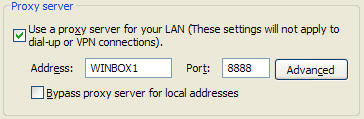
3. On the other machine (Mac/Unix/Windows) set the proxy settings to WINBOX1:8888.
1. Start Fiddler on a Windows machine named, for example, WINBOX1.
2. In Fiddler, click to make sure Tools / Fiddler Options / Allow remote clients to connect is checked.
(Restart Fiddler if this box wasn't already checked.)
3. On the other machine (Mac/Unix/Windows) set the proxy settings to WINBOX1:8888.

The second machine will now send its traffic through Fiddler running on WINBOX1.
If you want to decrypt HTTPS traffic, you may need to configure that second machine to trust the FiddlerRoot certificate.
Configure other browsers to use Fiddler
Fiddler is compatible with all known web browsers.
Current versions of Internet Explorer, Google Chrome, Apple Safari, and Opera all automatically use Fiddler when Fiddler is configured to Capture Traffic. (Opera requires that you start Fiddler before starting Opera).
Firefox is the only browser which does not use the System Proxy settings by default (prior to Firefox 10), and requires a little bit of extra configuration. Firefox 4+ can be configured to use the system proxy. In Firefox, click Tools > Options > Advanced > Network > Settings > Use System Proxy Settings (alternatively, see FiddlerHook Help.) Firefox is also one of only a handful of browsers that does not respect the Windows Certificate list. See this page for help on getting Firefox to trust Fiddler's HTTPS certificate.Manual Configuration
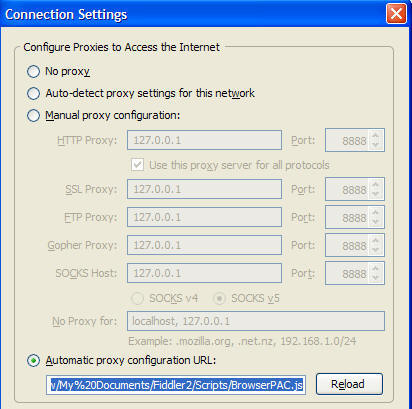
Every browser allows you to connect a proxy server; usually this is the Options (or Preferences) menu. You can either point directly at Fiddler (address: 127.0.0.1, port: 8888), or you can use Proxy Auto-configuration. The advantage of auto-configuration is that Fiddler rewrites the configuration script when it is attached and detached, meaning you shouldn't need to manually enable or disable the proxy in your client depending on whether or not Fiddler is loaded. Simply restart the browser and the new setting is detected.
For instance, if you don't want to let FiddlerHook do the job for you, you can manually configure Firefox to point at Fiddler. In Firefox, click Tools / Options / Advanced / Network / Settings, and adjust the settings like so:
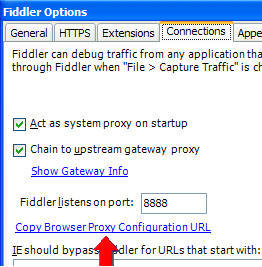
You can get the correct auto-configuration URL from Fiddler by clicking Tools / Fiddler Options / Connections, and clicking the "Copy Browser Proxy Configuration URL" link.
Can Fiddler "chain" to an upstream proxy?
Yes, all current versions of Fiddler support chaining to upstream proxies (either autodetected or manually specified).
So, you end up with an architecture like so:
Note that Fiddler does not support upstream proxy configuration scripts that are accessed using the FILE:// protocol, only those accessed using the HTTP or HTTPS protocols (so far, no one seems to have hit this limitation in the last 6 years).
To see what proxy Fiddler will chain to by default:
- Close Fiddler.
- Inside IE, choose Tools | Internet Options | Connections.
- Click the "LAN Settings" button.
- On the dialog, examine the options:
- After you restart Fiddler, choose Help | About Fiddler.
- You should see the upstream proxy listed in the About box.
Redirecting to Another Host by Fiddler
If you want to redirect the request to one host to another host through fiddler, you can do it easily with Fiddler script. You can either edit the fiddler script by installing Fiddler script add on to fiddler or you can edit with notepad or similar text editors.
Open the fiddler script and locate this function :
On this function paste the below code:
Open the fiddler script and locate this function :
static function OnBeforeRequest(oSession: Session) {On this function paste the below code:
1
2
3
| if (oSession.HostnameIs("yahoo.com")) {oSession.hostname="google.com";}THis code will redirect the request from yahoo.com to Google.com. This will be helpful if you are testing applications in multiple domains. |
Sunday, 9 April 2017
Editing Automatic server selection in CISCO ANYCONNECT VPN Client
hese steps are best used for when the default server is not vpn.cites.illinois.edu upon start up.Windows:
1. Log in to the VPN normally
2. Open a Windows Explorer window.
3. Copy this file path: "C:\Users\%username%\AppData\Local\Cisco\Cisco AnyConnect Secure Mobility Client" (highlight all of the text between the double quotes, and then copy)
4. Paste the copied path into the Address Bar in Windows Explorer.
5. Press Enter.
6. Right-click the preferences.xml file and select Edit
7. Edit the Default Host Name line (by default, this line reads "<DefaultHostName></DefaultHostName>") or Edit EnableAutomaticServerSelection to false
8. Click File > Save.
9. Quit the VPN client by right-clicking the Cisco AnyConnect icon in the system tray (left of the clock) and select Quit.
10. Re-open the Cisco AnyConnect client by selecting it from the Start Menu
11. vpn.cites.illinois.edu should automatically populate in the text box.
Optional: In step 7, you can also edit the Default User line to include your username by adding the following: <DefaultUser>netid</DefaultHostName>
1. Log in to the VPN normally
2. Open a Windows Explorer window.
3. Copy this file path: "C:\Users\%username%\AppData\Local\Cisco\Cisco AnyConnect Secure Mobility Client" (highlight all of the text between the double quotes, and then copy)
4. Paste the copied path into the Address Bar in Windows Explorer.
5. Press Enter.
6. Right-click the preferences.xml file and select Edit
7. Edit the Default Host Name line (by default, this line reads "<DefaultHostName></DefaultHostName>") or Edit EnableAutomaticServerSelection to false
8. Click File > Save.
9. Quit the VPN client by right-clicking the Cisco AnyConnect icon in the system tray (left of the clock) and select Quit.
10. Re-open the Cisco AnyConnect client by selecting it from the Start Menu
11. vpn.cites.illinois.edu should automatically populate in the text box.
Optional: In step 7, you can also edit the Default User line to include your username by adding the following: <DefaultUser>netid</DefaultHostName>
Monday, 27 March 2017
Concatenating with Left padded Zeros in MS Excel
|
You can use the formatting options in the
TEXT() function. The syntax is TEXT(value, format_text), so in your example you'd use a formula like:=TEXT(A1,"00000")To join the two numeric strings together =CONCATENATE("1027", TEXT(A1,"00000")) See: http://office.microsoft.com/en-us/excel-help/text-function-HP010062580.aspx |
OR
The
right
function will do what you want, if you put a bunch of zeroes before
your number. If you want 5 digits total, you'd do something like this:
This would output 00045. If you are putting another number before it, you can just keep concatenating, like this:
You can, of course, replace any of those values with cell references to make it all more dynamic. |
Wednesday, 22 March 2017
Wednesday, 15 March 2017
How to generate random date quickly in Excel?
Generate random date in cells with Function
In Excel, you can mix the Randbetween and Date function to create random date, please do as follows:
1. Select a cell that you want to insert a random date, and enter this function: =RANDBETWEEN(DATE(2013, 1, 1),DATE(2013, 3, 1)).
Note: in the function, (2013, 1, 1) is the starting date, and (2013, 3, 1) is the ending date, you can replace them as you need.
2. Then press Enter key, it displays a five-digit number in the cell, and you need to convert this format to the date format.
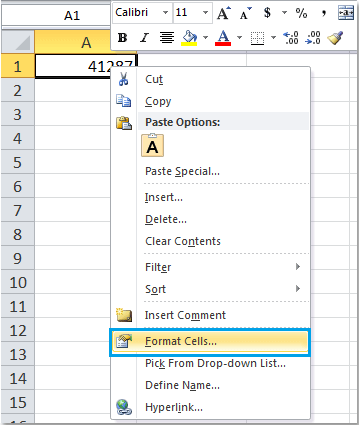
3. Select the cell, and right-click, choose Format Cells from the context menu, see screenshot:

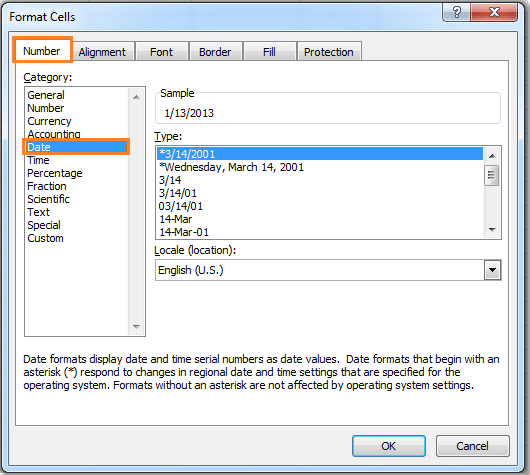
4. And in the Format Cells dialog box, click Number tab, and select Date from the Category, then select a date format you need from the Type drop-down list. See screenshot:

5. Click OK,
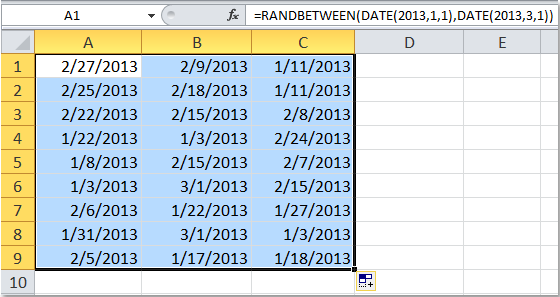
the number has been converted to the normal date format. Then click the
cell and drag the fill handle over to the range that you want to fill
with random date. And the date has been generated randomly. See
screenshot:

Tuesday, 14 March 2017
Merging CSV Files without Excel
his is a trick which can save you a lot of time when working with a
dataset spread across multiple CSV files. Using a simple CMD command it
is possible to combine all the CSV’s into a single entity ready for all
your pivot and table wizardry.

Top Tip – if you navigate to your desired folder in Windows Explorer (e.g. clicking My Documents from the Desktop) you can see the folder location path in the top of the window. However, don’t close it – you cannot copy & paste into CMD so you will need to type the folder path out!

Top Tip: Because the CSV file format cannot support multiple tabs all of your data will be copied into one worksheet within the CSV workbook. For this reason it may be worth collating all your data in a similar structure – so as to avoid large amounts of formatting work at the end.
Step 1
Save all of the CSV files into a single folder. Make sure that the folder is free from any CSV’s you do not want included in the compression.Step 2
Navigate to “Run” from the Windows Start Menu- On XP this is located in the Start Menu itself
- In Vista / Win 7 you may have to navigate first to “Accessories” to find the Run executable.
Step 3
When the CMD window opens; you will be presented with your default document folder housing all of your personal files. From here you need to execute the “cd” command which navigates to your desired folder. Type “cd” after the chevron followed by a space then your desired folder location including the drive architecture. For example if your cmd window opens with “C:\Users\Your Name>” pre-populated, the complete command line would read: “C:\Users\Your Name>cd C:Desired Folder”.Top Tip – if you navigate to your desired folder in Windows Explorer (e.g. clicking My Documents from the Desktop) you can see the folder location path in the top of the window. However, don’t close it – you cannot copy & paste into CMD so you will need to type the folder path out!
Step 4
Once you have entered the command line and hit Enter, the desired folder location will appear on the subsequent line. Now you need to use the “copy” function to merge all the CSV files together. In a similar fashion to the “cd” command, type “copy” after the chevron, followed by a space then “combine.csv”. This copies the data from all CSV files in that location into a single file called ‘combine.csv’.
Top Tip: Because the CSV file format cannot support multiple tabs all of your data will be copied into one worksheet within the CSV workbook. For this reason it may be worth collating all your data in a similar structure – so as to avoid large amounts of formatting work at the end.
Step 5
Once executed you will be presented with confirmation; outlining which files have been copied into a single entity. Navigate to your destination folder and enjoy the fruits of your CSV-based labour in combine.csv!Friday, 3 March 2017
Distinct Values from Excel
Some time we may have some requirement to extract the distinct values from an excel column. There is no direct formulas to do that. Instead of that we can do this in 2 ways. one is through a simple VB code and the second one is through Advanced Filter. This is applicable for Excel 2007 and higher versions as of my knowledge.
Solution 1: VB Program:
1. Press Alt + F11 to open VB editor window
Solution 1: VB Program:
1. Press Alt + F11 to open VB editor window
2. Go to Insert menu >> Module
3. Copy and paste the below vba code into the window
Option Explicit
Sub CreateUniqueList()
Dim lastrow As Long
lastrow = Cells(Rows.Count, "B").End(xlUp).Row
ActiveSheet.Range("B2:B" & lastrow).AdvancedFilter _
Action:=xlFilterCopy, _
CopyToRange:=ActiveSheet.Range("D2"), _
Unique:=True
End Sub
Here it takes the distinct values from Column B and writing into Column D. Change accordingly.
Sub CreateUniqueList()
Dim lastrow As Long
lastrow = Cells(Rows.Count, "B").End(xlUp).Row
ActiveSheet.Range("B2:B" & lastrow).AdvancedFilter _
Action:=xlFilterCopy, _
CopyToRange:=ActiveSheet.Range("D2"), _
Unique:=True
End Sub
Here it takes the distinct values from Column B and writing into Column D. Change accordingly.
Solution 2: Advanced Filter:
- Go to Data tab in the menu
- In Sort and Filter box, Click Advanced button
- Choose "Copy to another location"
- In "List range :" box, select a range from which unique values need to be extracted (including header)
- In "Copy to :" box, select a range in which final output to be put
- Check Unique records only
- Click Ok
Subscribe to:
Posts (Atom)
Shrinking the size of Oracle Virtual Box
First, zero fill your virtual disk. Boot the VM and run: sudo dd if=/dev/zero of=/bigemptyfile bs=4096k status=progress sudo rm -f /bigempty...
-
Powershell - CURL error Ambiguous parameters in the command : I tried to invoke bitbucket pipelines from API using CURL command. I installe...
-
Today, while I am solving a old script, I need to remove a comma at the end in a string which is feed to construct a dynamic url in a reque...
-
All of a sudden, my docker on windows stopped working with an error unexpected error occurred: Logon failure: the user has not been grant...